Branch creator views
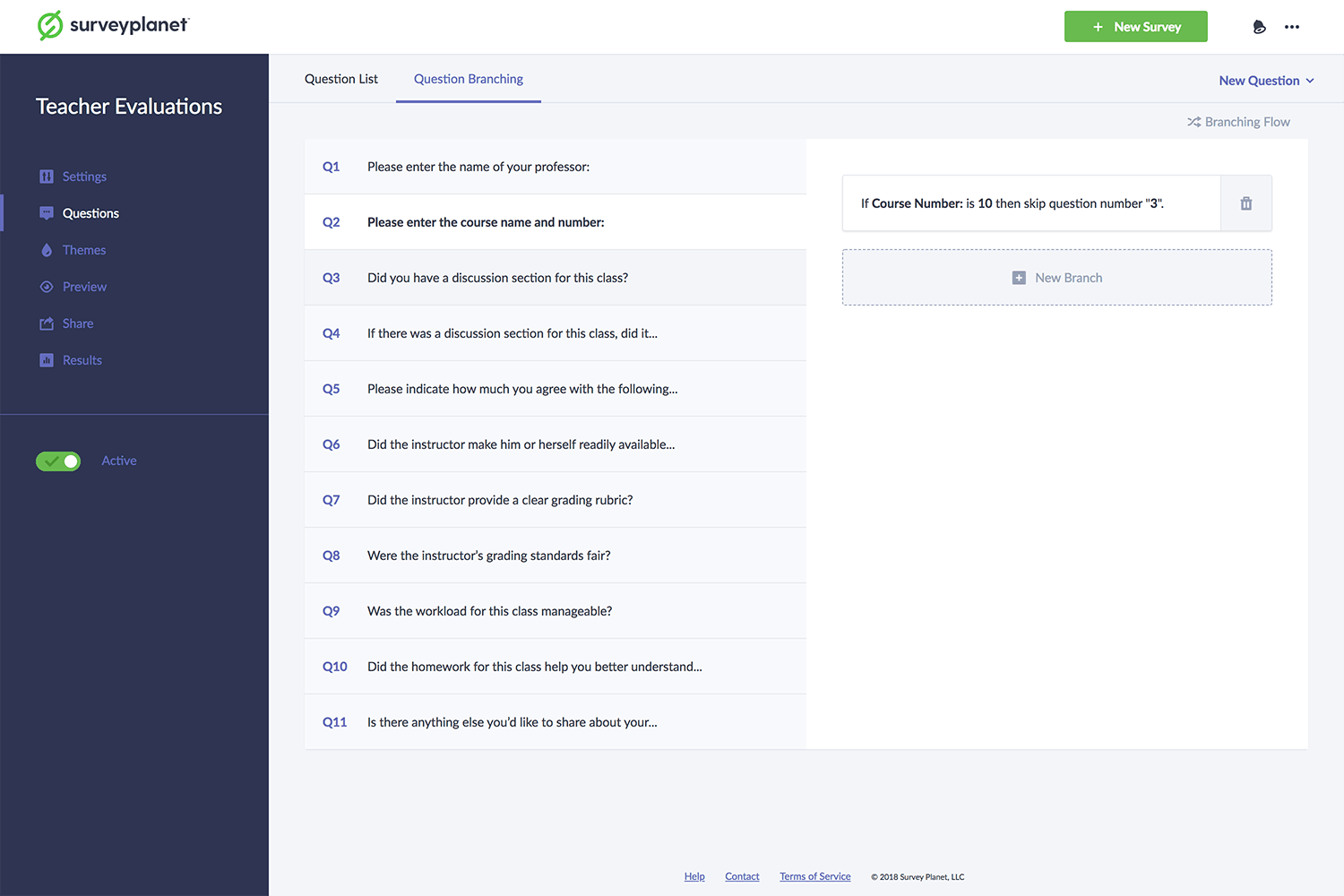
Branching list view
Branching List is one of the ways to visualize your question branches. You can access it through your survey’s Question Branching tab by selecting the Branching List icon on the right side of the subnavigation. By default, you’ll see the Branching List view. This is a list of your survey’s questions, and highlighting a question reveals its branches.
Branching flow view
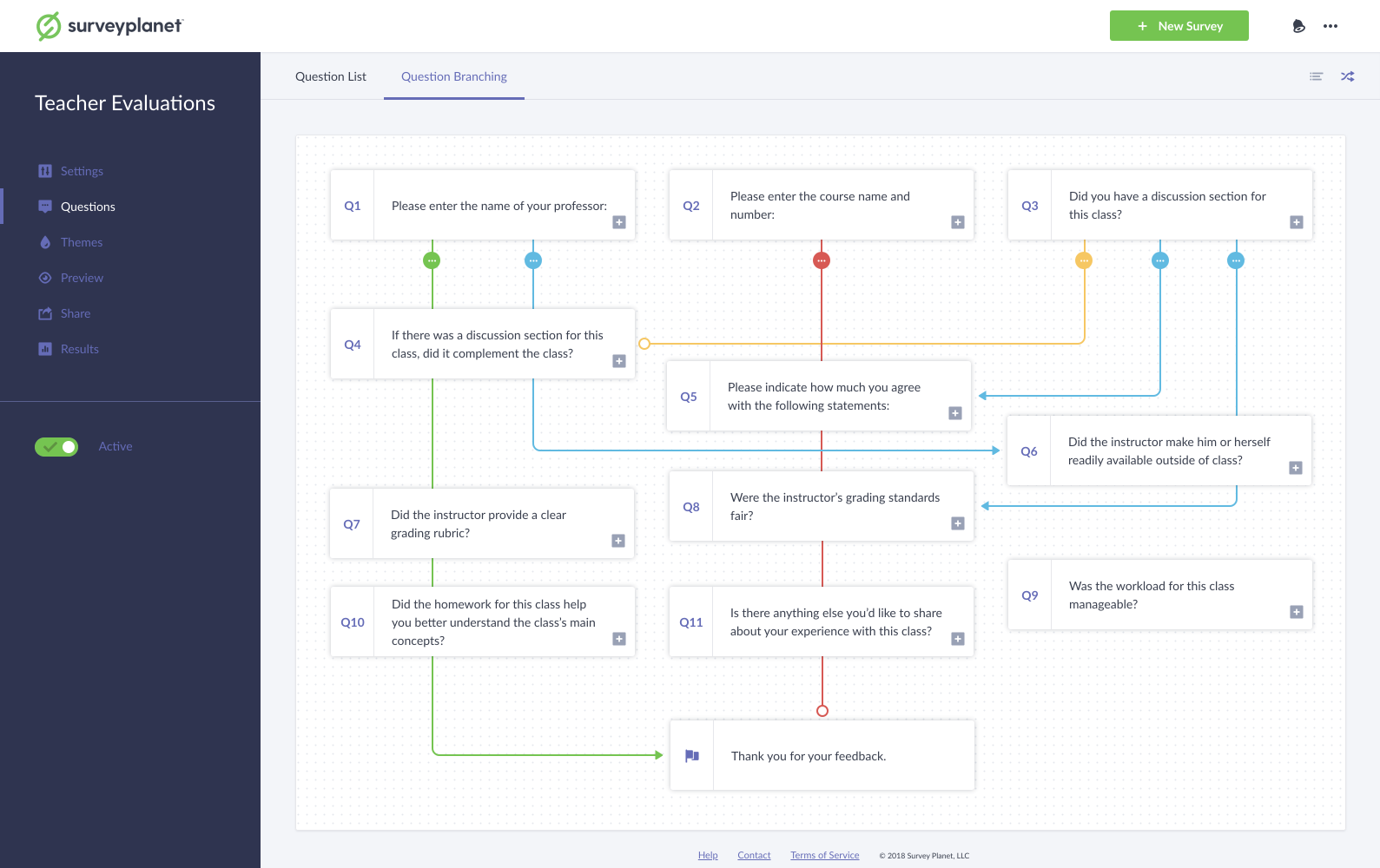
Branching Flow looks similar to a flow chart. You can access it through your survey’s Question Branching tab by selecting the Branching Flow icon on the right side of the subnavigation. In this view, branch actions appear as lines connecting your questions, so you can see how participants navigate your survey. Each action has a unique color.
- skip: yellow line with a circle at the end
- go to: blue line with an arrow at the end
- end survey: green line with an arrow at the end
- disqualify participant: red line with a circle at the end
- Invalid branches are displayed as a light gray line with an exclamation icon attached
All branching lines have an ellipsis icon attached. You can select this icon to read a description and delete the branch.