Question editor
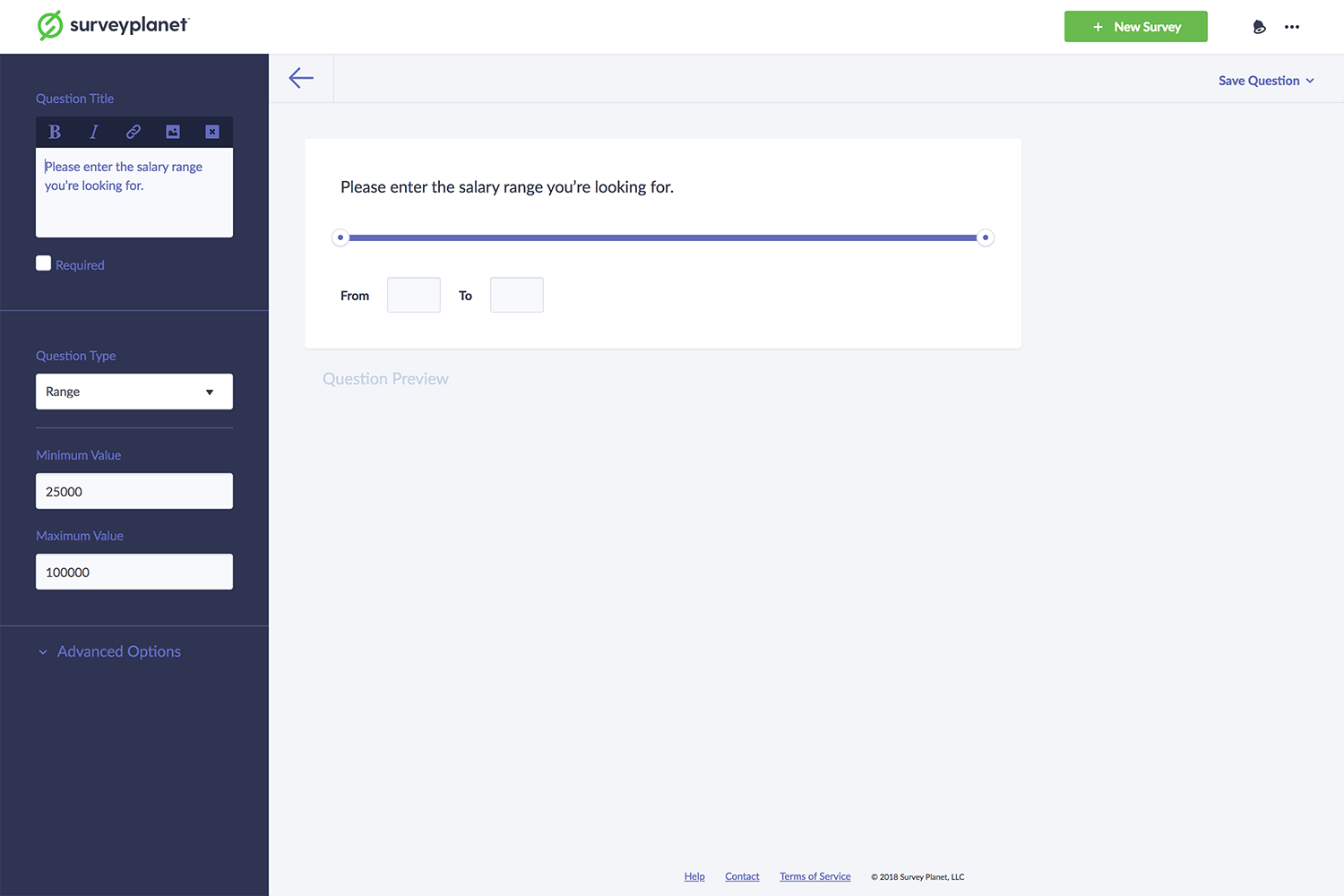
The Question Editor is where you edit your questions for your survey. This allows you to choose the type of question, enter all the question information, and make stylistic edits to the questions.
Create a new survey question
- Select the Questions icon to go to the Question List page.
- Select New Question to get started.
Question title
The question title is where you enter the question you want answered. The font is slightly larger than the answer options. As you type, the question title appears to the right in the Question Preview.
Question title custom formatting
If you are a Pro subscriber, you can format your question title further by adding bold, italics, links, or images.
Add an image to the question title
If you are a Pro subscriber, you can add an image in your question title:
- At the top of the Question Title input field, select the Image icon .
- Select or upload an image from your Light Box.
You can place images anywhere in your question title, based on your cursor position when you select the Image icon .
Required questions
Beneath the Question Title input field, select the Required checkbox to make the question required. This means participants can’t skip the question without answering it.
Cancel question editor
If you started a question and want to quit before saving it, at the top of the page above the question preview, select the Back Arrow icon .