Account
All your account information is in one place. After you sign in, select the Menu icon in the top right corner to go to your account information.
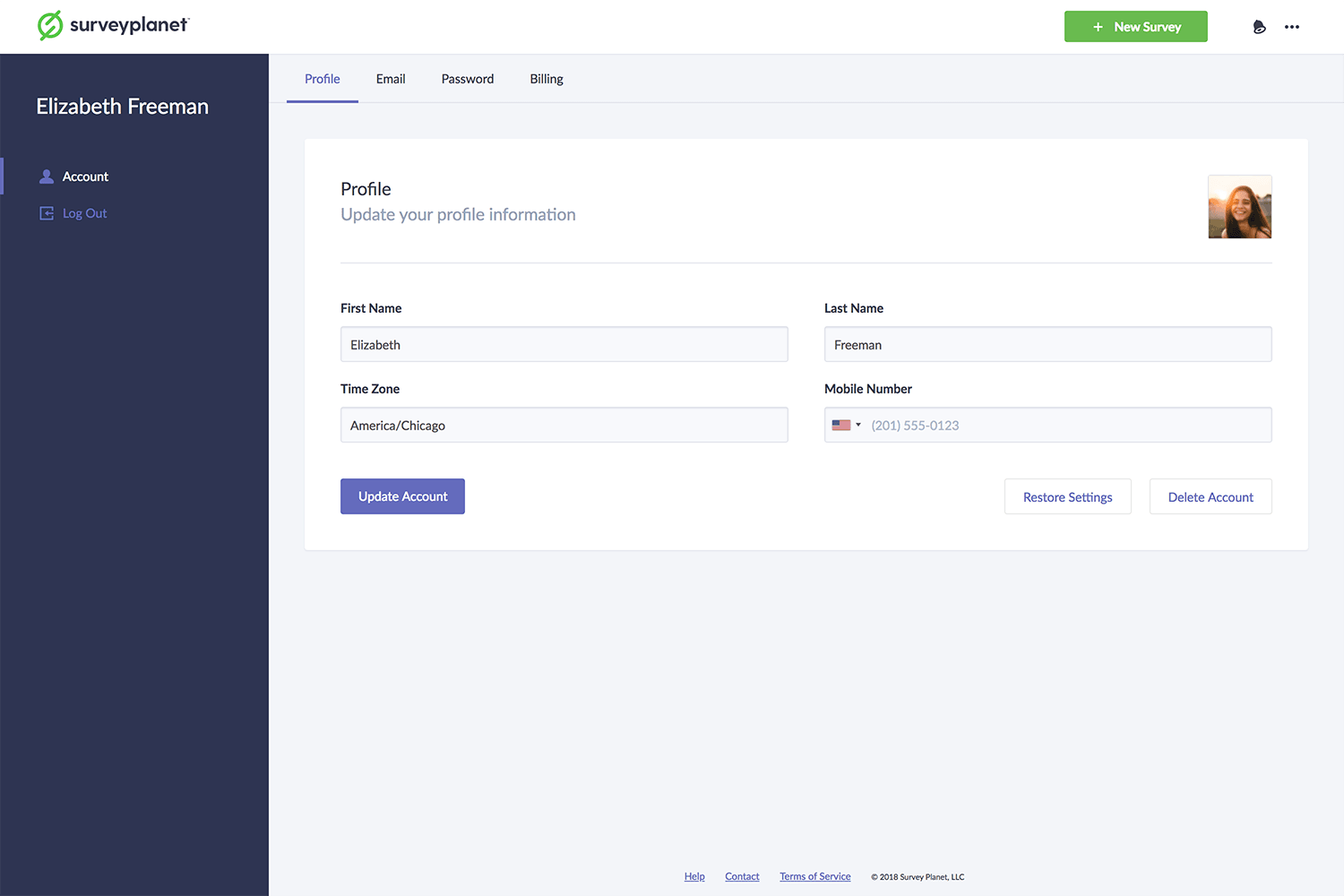
If you select the Account icon , you go to your Profile. From here, you can choose from the following tabs at the top: Email, Password, and Billing. After making any changes, select Update Account. You can also delete your account from this page using the Delete Account button or restore original settings using the Restore Settings button.
Change profile information
Select the Account icon . Here you can update your First Name, Last Name, Time Zone, and Mobile Number. Select Update Account to apply.
Restore settings
To restore Surveyplanet to its default settings, select the Account icon and then select the Profile tab. Select the Restore Settings button at the bottom. Selecting this button restores Surveyplanet’s default tooltip, warning and view settings.
Change email address
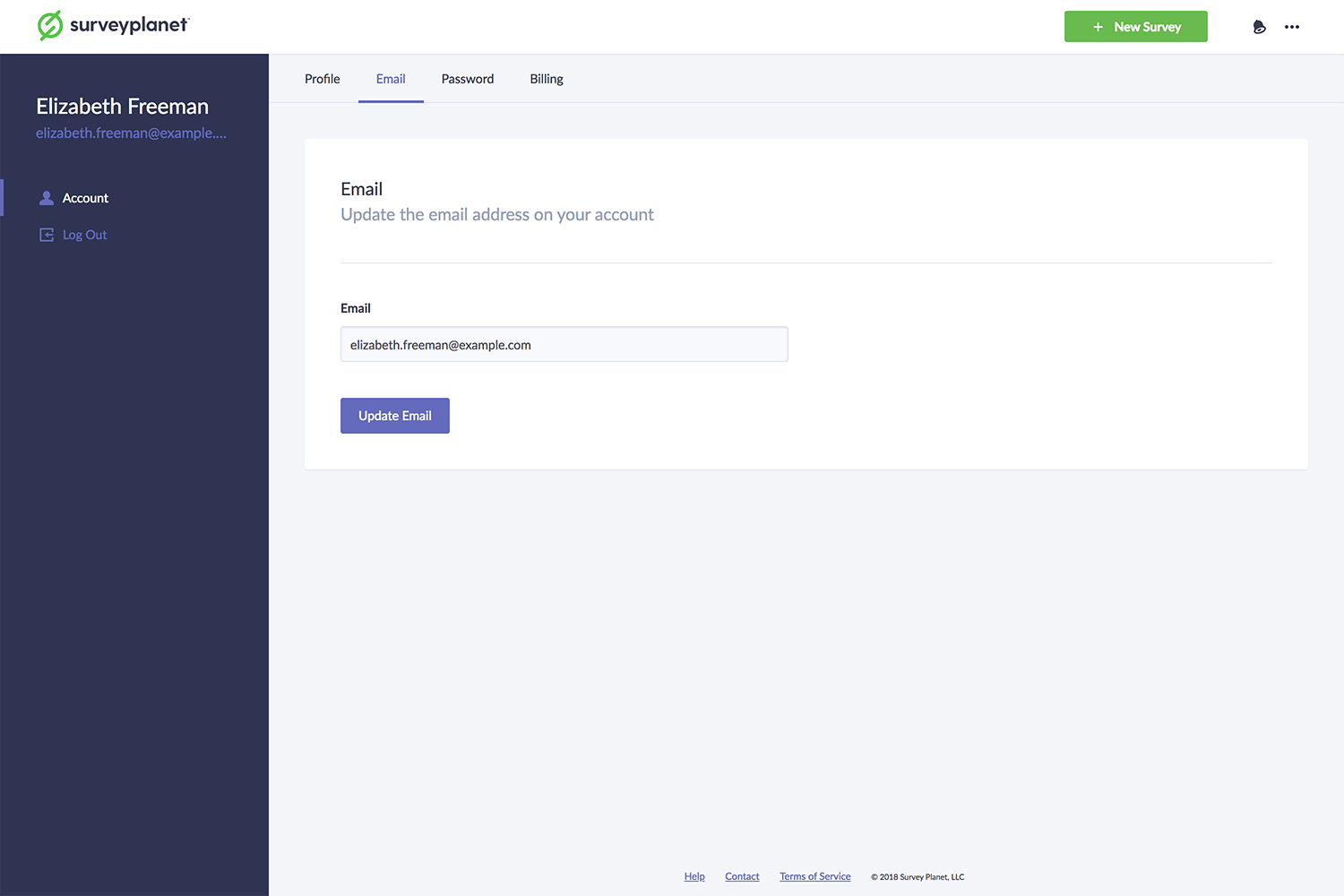
To change your email address, select the Account icon and then select the Email tab at the top of the page. Enter the email address you want to use and select Update Email.
Change password
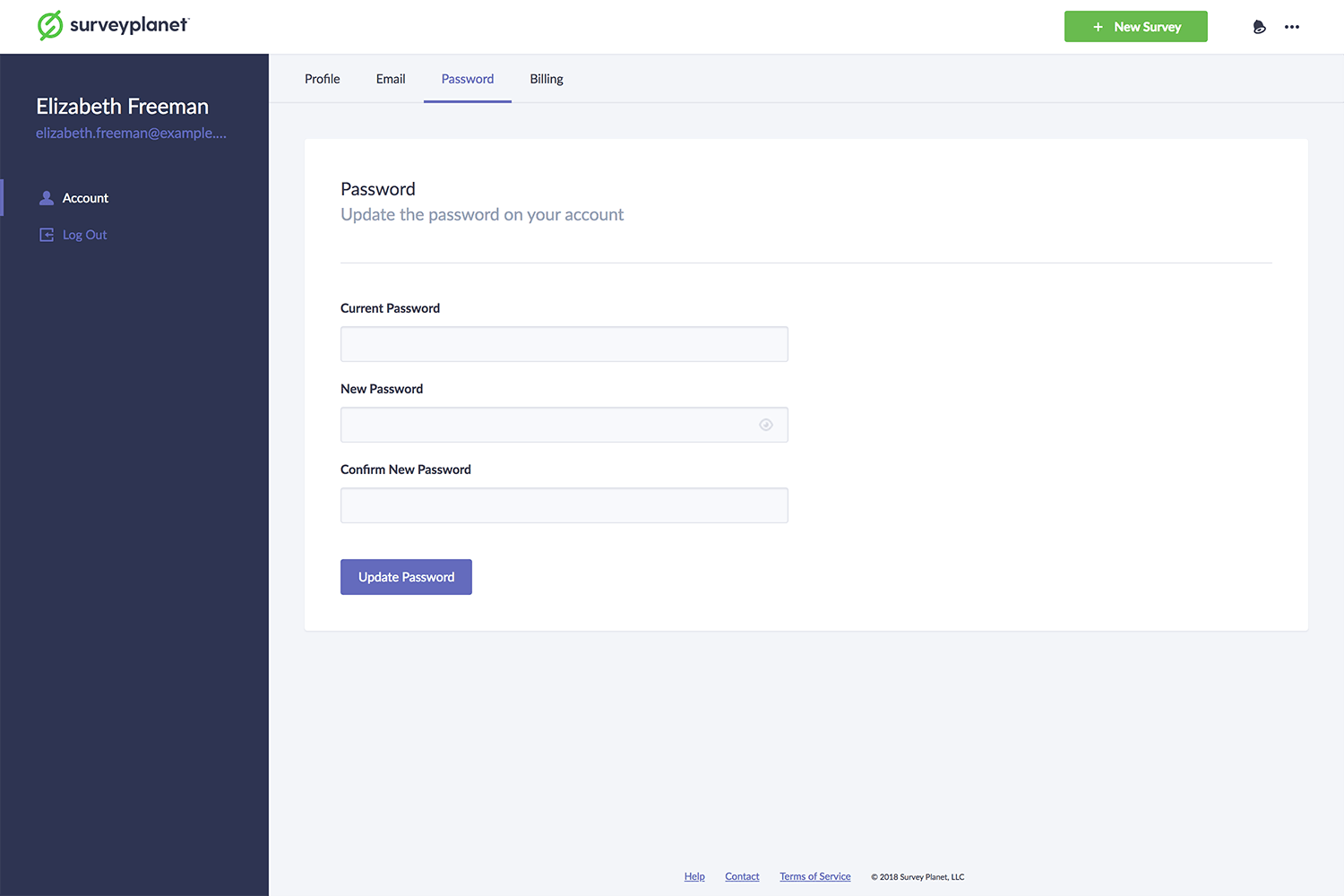
To change your password, select the Account icon and then select the Password tab at the top of the page. Type your current password in the Current Password input field. Type your new password in the New Password input field, and then retype your new password in the Confirm New Password input field. Passwords must be at least 8 characters. Select Update Password.
Delete account
To delete your account, select the Account icon and then select the Profile tab. Then in the bottom right corner, select the Delete Account button. This asks you to enter your email address to confirm. Note: Deleting your account is permanent. You lose all associated surveys and results.