Billing
You can view your billing details, update your billing information, and purchase additional licenses in the Billing section of your account page. To access the Billing page, select the Menu icon in the top right corner followed by the Account link . Once you’re on the Account page, select the Billing tab in the sub-navigation.
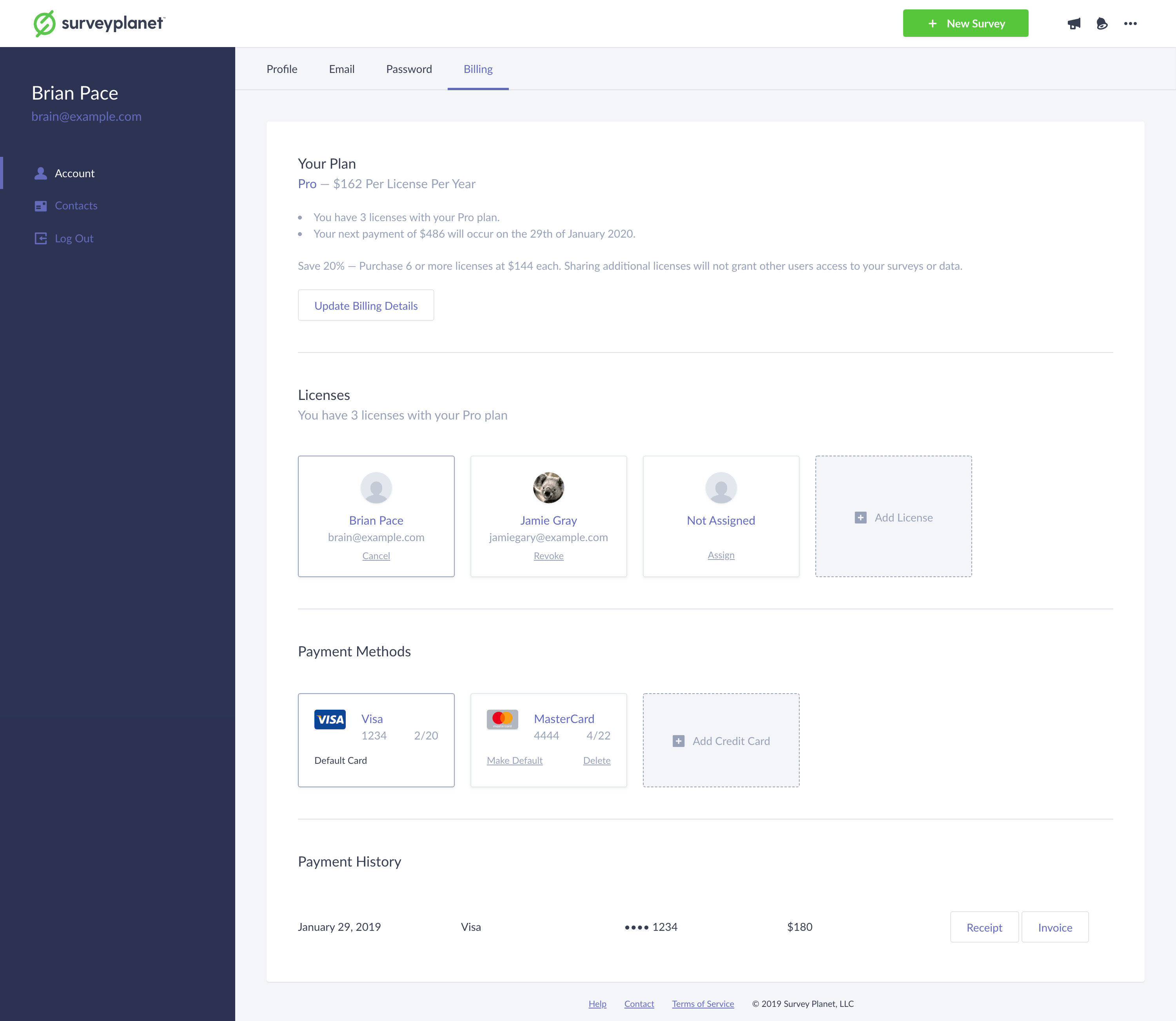
At the top of the Billing page you’ll see a short summary of your Surveyplanet subscription including your current plan, how many licenses you have, and more. Under your subscription details you can see your Licenses, Payment Methods and Payment History.
Cancel subscription
You can cancel your Pro subscription at any time. If you cancel in the middle of a billing cycle, you can still use all your Pro features until the end of the billing cycle, and you won’t be automatically billed again.
To cancel your Pro subscription, go to the billing page by selecting the Menu icon in the top right corner followed by the Account link , and then select the Billing tab at the top of the page. Find the license assigned to you and select the Cancel button. A confirmation dialog appears for you to confirm your cancellation.
Payment method
A single credit card is required when you purchase a Surveyplanet license. Adding additional payment methods ensures your subscription is not interrupted if your default card expires or is declined.
Adding a new credit card
To add a new card to your account, select the Add Credit Card button in the Payment Methods section of the Billing page. Enter the credit card information and select Add Card.
Changing the default credit card
You can change your default credit card at any time in the Payment Methods section of the Billing page. You must have more than one card to change your default card. To change your default credit card, select the Make Default button for the card you would like to be your default.
Deleting a credit card
To delete a credit card from your account, find the card you would like to delete in the Payment Methods list and select the Delete button. Note that you can’t delete a default card, and you must always have at least one card on your account.
Payment history
To view your billing history, select the Account icon and then select the Billing tab at the top of the page. Under Billing Details, you’ll see Billing History and a list of your payments for your Pro subscription. You can see the date you were charged, the credit card used, and the amount charged to your card.
Payment receipt
You can also select the Receipt icon or Invoice icon to view and print an invoice or receipt for each payment. If you need a PDF copy of your invoice or receipt with all of your billing information, select Download as PDF on the invoice or receipt screen.
If you notice that any information is missing from the invoice or receipt, update your billing information first, select Save, and then try downloading your invoice or receipt again. If you need your VAT number on your invoice or receipt, there is a section for that, and all future invoices and receipts include it. If you need previous receipts updated to reflect a new address or other information, contact support to have them regenerated.