Question results
At the bottom of each question summary, select Question Details to see every answer to that question. In Question Details, you can move between questions by selecting the Left and Right icons at the top. To return to the Questions Summary view, select the Back Arrow icon at the top.
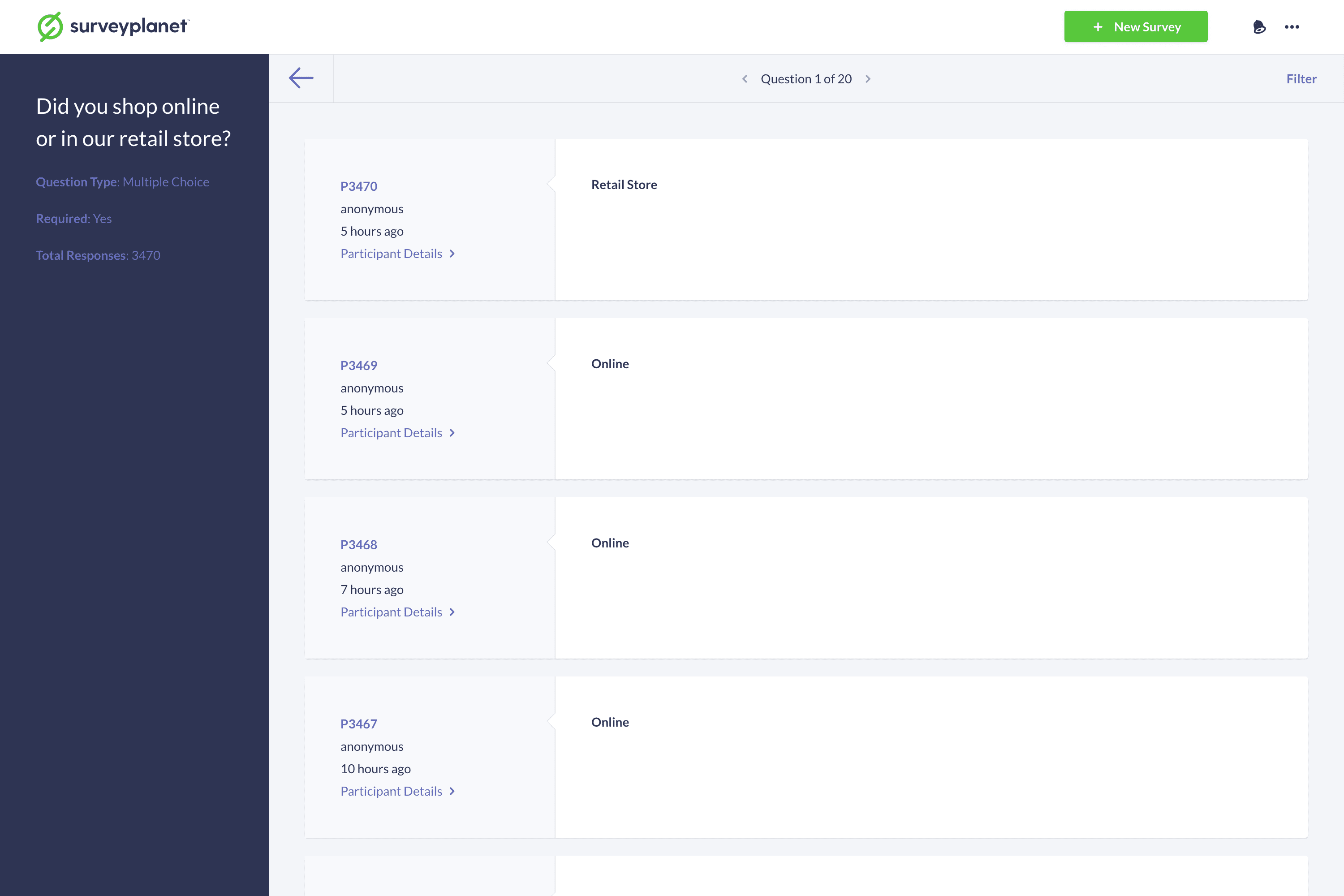
Filter question results
Surveyplanet Pro users can filter survey results based on the response dates or the answers. From the Survey Results page, select Question Details on the question you’d like to filter. On the Question Details page, select Filter on the right side of the subnavigation. All questions can be filtered by the Answer Date. Additionally, different question types can be filtered in different ways by selecting the Answer checkbox:
- Multiple Choice, Image Choice: Filter based on whether a specific choice is or is not included.
- Essay, Form: Filter based on what the response is or is not or whether it begins with, does not begin with, ends with, does not end with, contains or does not contain a given value.
- Rating, Range, Scale: Filter based on whether the response is equal to, is greater than, is greater than or equal to, is less than or is less than or equal to a given value. Scale questions can also be filtered on whether the response is between two values.
- Scoring: Filter based on whether a label is or is not given a score.
- Date/Time: Filter on whether the answer is on, is after or is before a given date and/or time, or whether the answer is between two given dates and/or times.
All question types can be filtered to include or exclude responses based on the response date. You can choose whether to filter responses before, after, or on a specific date, or filter responses that fall between two dates. Filtering survey results is a Pro feature.
Filter question results by date
- At the bottom of each question summary, select Question Details.
- On the right side of the subnavigation, select Filter.
- Select the Answer Date checkbox.
- Choose is on, is after, is before or is between from the dropdown.
- Based on your choice, enter the date you need. If you choose is between, enter both a beginning and an end date.
- Select Filter.
Filter question results by answer
- At the bottom of each question summary, select Question Details.
- On the right side of the subnavigation, select Filter.
- Select the Answer checkbox.
- Select the desired filtering method and filtering value.
- Select Filter.