Export all results
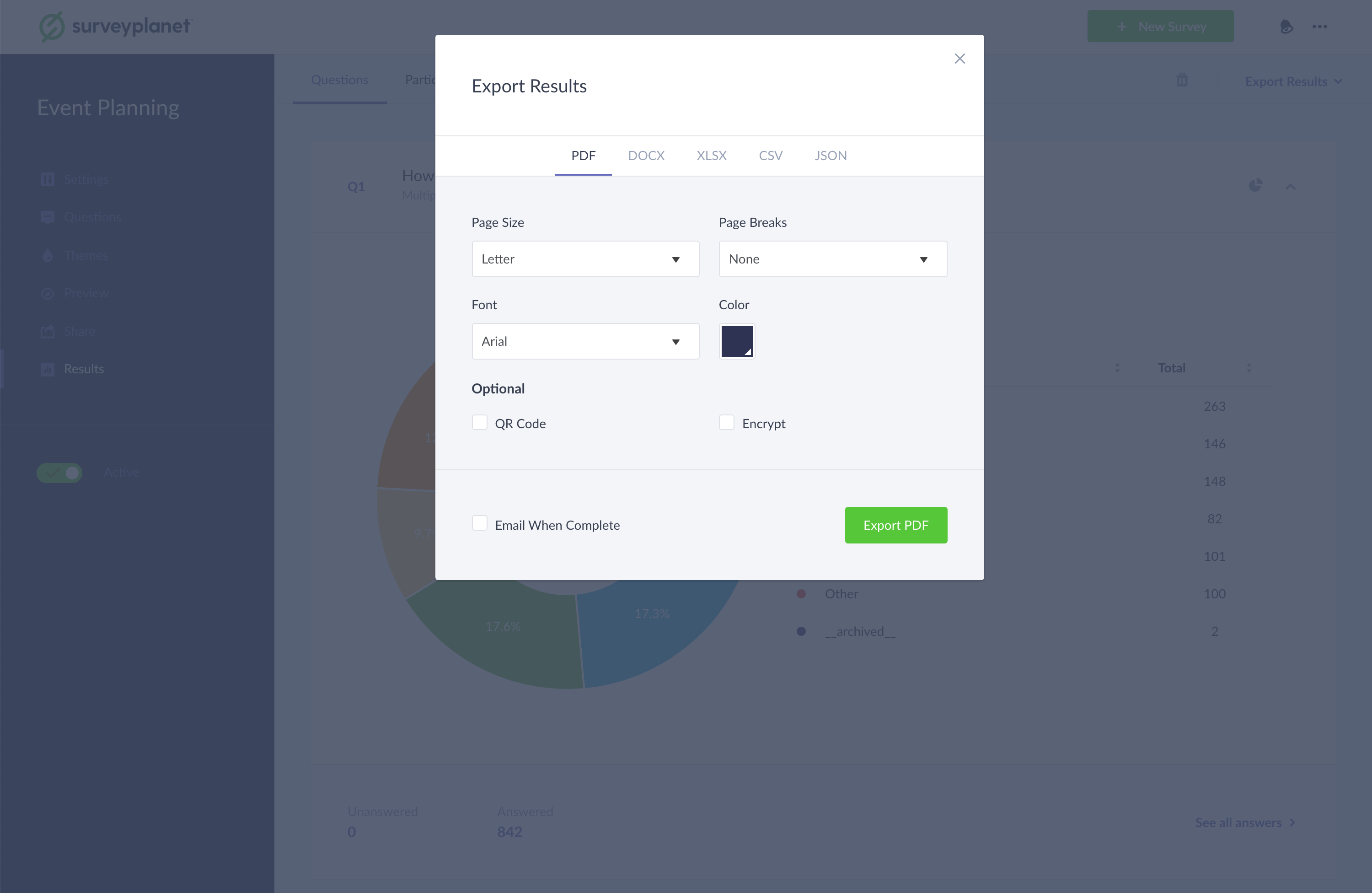
You can export all your results in the following formats:
- DOCX
- XLSX
- CSV
- JSON
Export all results as a CSV
CSV files are the most common option and can be imported into most spreadsheet and statistical analysis programs. CSV files use a comma to separate or delimit each data field. If you tend to work in Excel, Numbers, or Google Sheets, this is most likely the correct option for you.
- While viewing survey results, select the Export Results button in the top right corner.
- Select Export All.
- Once the dialog appears, select the CSV tab (no export options available).
- Select Export CSV.
Export all results as a JSON
JSON files are used by developers and programmers to transmit data between applications and servers, rather than spreadsheet programs like Excel.
- While viewing survey results, select the Export Results button in the top right corner.
- Select Export All.
- Once the dialog appears, select the JSON tab (no export options available).
- Select Export JSON.
Export all results as Excel
- While viewing survey results, select the Export Results button in the top right corner.
- Select Export All.
- Once the dialog appears, select the XLSX tab (no export options available).
- Select Export XLSX.
Export all results as Word
- While viewing survey results, select the Export Results button in the top right corner.
- Select Export All.
- Once the dialog appears, select the DOCX tab.
- Choose the export options:
- Page Size
- Page Breaks
- None—doesn’t break pages
- After each section
- Color
- Select Export DOCX.
Export all results as a PDF
- While viewing survey results, select the Export Results button in the top right corner.
- Select Export All.
- Once the dialog appears, select the PDF tab.
- Choose the export options:
- Page Size
- Page Breaks
- None
- Compact—fits as many sections on a page as possible
- After each section
- Color
- QR Code—embeds a QR code with a link to your survey results
- Encrypt—enables a password-protected PDF
- Select Export PDF.