Form question
Form questions are perfect for gathering information about your participants. Form questions can also be used for questions where you’d like to get a list of favorites, likes and dislikes, and so forth. Type your question, then enter the name of each form field (for example, Name, Rank and Serial Number).
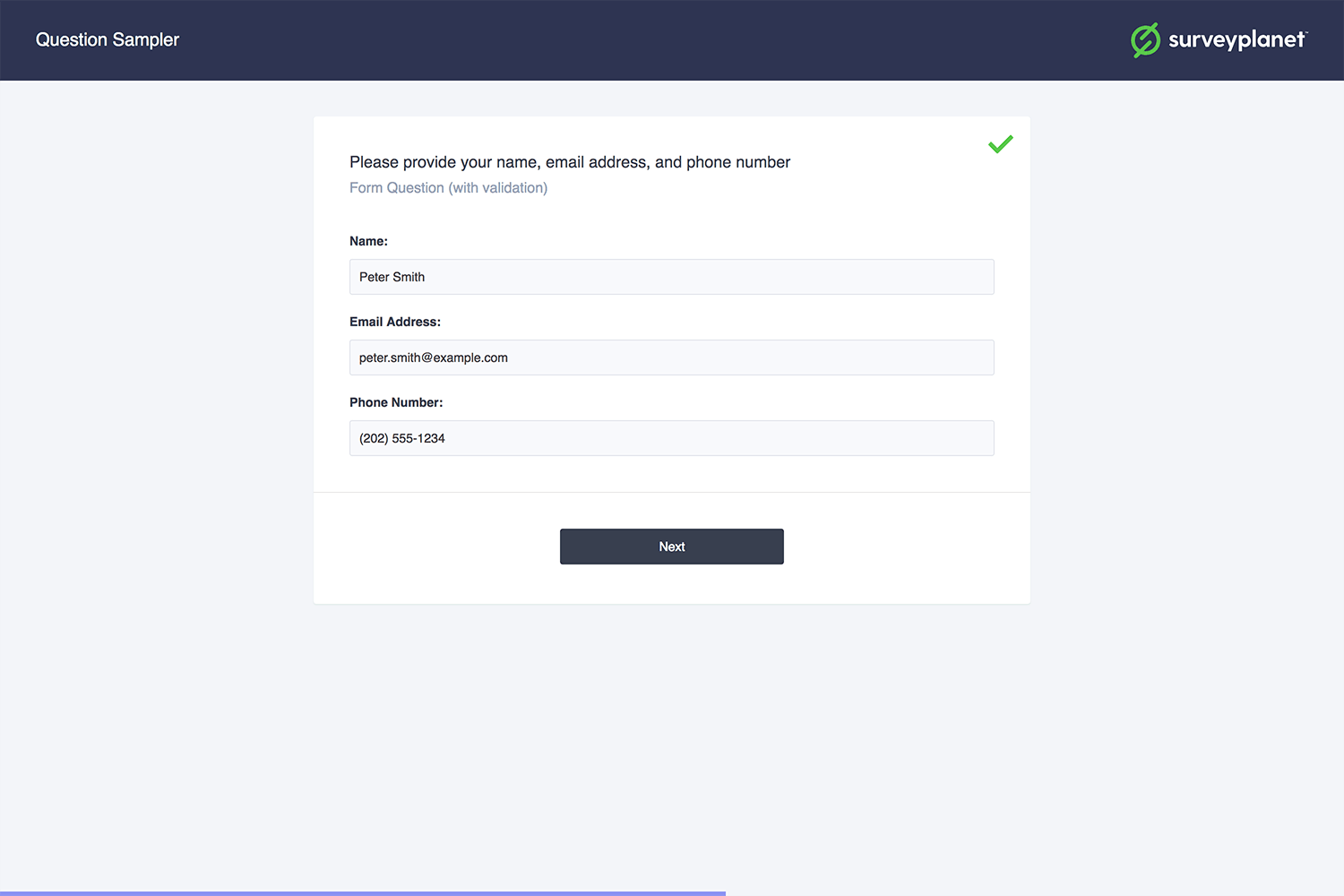
Required form questions only require a single field to be completed by default. For instance, if you ask for a first and last name, the participant may only answer the first name field and move on to the next question. To require all fields to be answered, select the Require Answers for All Fields checkbox.
Form question options
Add a new choice
Choices in form questions are the names of each form field. When you first choose a form type question, only one choice box shows up. To add new choices, do the following:
- Select within the New Choice input field.
- Type the name of that form field.
- A new choice box appears. If you have more than one, enter the name for that form field.
- Repeat until all form fields needed are named.
Remove a choice
To remove a choice, follow these steps:
- Hover over the choice you want to delete. An X appears on the right side.
- Select the X to delete that choice.
Reorder choices
To reorder your choices, follow these steps:
- Hover over the choice you want to move up or down. A Move icon appears on the right side.
- Select and hold the Move icon .
- Drag the choice to its new location.
- Repeat this for all the choices you want to move.
Validations
You can set restraints for each input in a form question. For instance, you can create a question requesting an email address and the question will not be accepted unless a valid email address is entered. You can add multiple validations to a question but you can only add one validation per input.
To create a validation, select the check next to one of your choices. This opens a dialog where you can select the type of validation you’d like to use.
Here is a complete list of validations you can use.
| Validation Rule | Valid Example | Explanation |
|---|---|---|
| Must not be empty | anything | As long as the field has text it is considered valid |
| Must be a valid url | https://example.com or http://www.example.com | A valid url that begins with http:// or https:// |
| Must be a valid email address | example@gmail.com | |
| Must be a comma separated list of valid email addresses | example1@gmail.com, example2@hotmail.com | |
| Must be at least X characters long | any text that is at least X characters in length | |
| Must be no longer than X characters | any text that is not longer than X characters in length | |
| Must be exactly X characters long | any text that is exactly X characters in length | |
| Must be greater than X | any number greater than X | |
| Must be equal to X | any number equal to X | |
| Must be less than X | any number less than X | |
| Must only contain alphabetical characters (A-z) | abc | Spaces, new lines, tabs, numbers and any special characters are invalid. |
| Must only contain alpha-numeric characters (A-z, 0-9) | abc123 | Spaces, new lines, tabs and any special characters are invalid. |
| Must only contain alpha-numeric characters, underscores, or dashes | abc-123_ | Spaces, new lines, tabs and any special characters except underscores and dashes are invalid. |
| Must be a whole number | 0 or 9999 | Can not be negative or decimals. |
| Must be an integer | -10 or 10 | Can be negative numbers but not decimals. |
| Must be a valid decimal | -10 or -10.3 or 20 or 23.3 | Can be negative numbers or decimals. |
| Must be a valid IP address | 192.168.0.1 | Does not validate IPv6. |
| Must be a valid phone number | (800) 555-1234 or 8005551234 | May or may not include a three digit area code with optional parenthesis. Phone number segments must be seven digits and may or may not be separated by a dash, period or space |
| Must match a Regular Expression | /\b(?:p.?\so.?|post\s+office)(\s+)?(?:box|[0-9])?\b/igm /#?([\da-fA-F]2)([\da-fA-F]2)([\da-fA-F]2)/gm | The examples indicate a PO Box and HEX code respectively. We recommend testing your Regular Expression before applying it. |
Randomize
You can have your form fields appear in a random order by selecting the checkbox next to Randomize.
Require answer for all fields
If you select Required beneath the Question Title, only one form field is required for the entire question. To require that all fields be answered, select the Require Answer for All Fields checkbox.
Because questions that aren’t required are valid by default, this option doesn’t take effect unless the following has occurred:
- The question is marked as required.
- One of the other fields has been answered.