Scoring question
Scoring questions, often called matrix questions, allow your participant to assign a numerical score to a series of choices. Type each choice and decide what the maximum score is. The default setting is a score from 1 to 5. You can set a maximum score between 2 and 10. The maximum distance between your minimum and maximum scores can be 10.
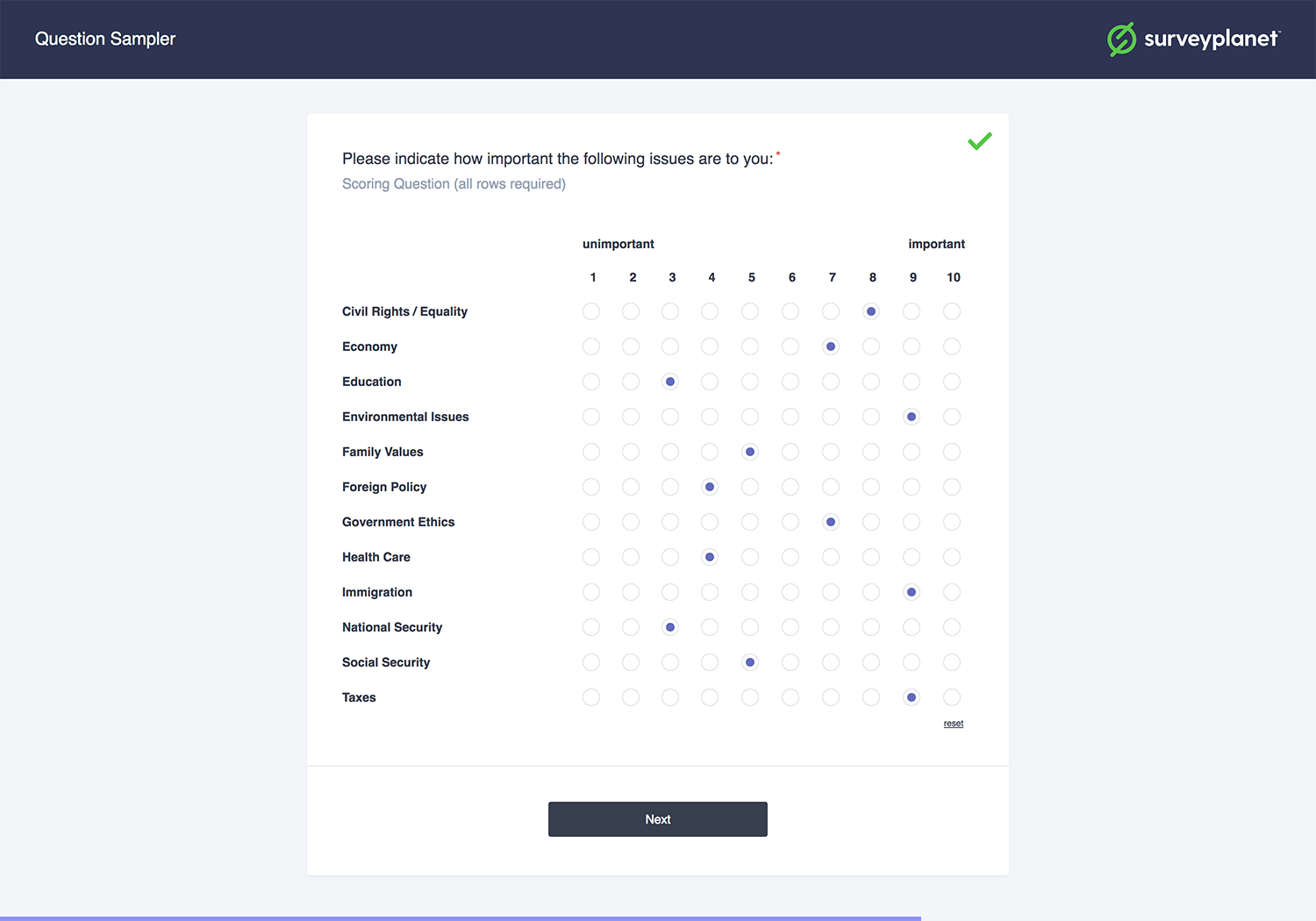
Scoring questions only require a single row to be answered. If you create a question with multiple rows, your participants may answer the first row and move on to the next question. To require an answer for all your labels, select the Require Score for All Rows checkbox.
Scoring question options
Minimum score
To set a minimum score, either enter the number in the Minimum Score box, or use the up and down arrows that appear on the right side of the box when you hover over it.
Minimum score label
If you select Define Score Labels, you can label your minimum and maximum scores. This is helpful for letting the survey participant know what the range means. In the Minimum Label box, enter the label for it.
Maximum score
To set a maximum score, either enter the number in the Maximum Score box, or use the up and down arrows that appear on the right side of the box when you hover over it.
Maximum score label
If you select Define Score Labels, you can label your minimum and maximum scores. This is helpful for letting the survey participant know what the range means. In the Maximum Label box, enter the label for it.
Add a new label
To add a new row label, select the New Choice box beneath Labels. Enter the label you want. A new label box appears. You can continue to enter all the needed labels.
Remove a label
To remove a label, hover over the label you want to delete until you see the gray X appear in the right side of the Choice box. Select the X to delete that choice.
Reorder a label
To reorder a label, hover over the choice you want to move until you see the gray Move icon appear in the right side of the Choice box. Select and hold the arrow and drag the label to the location you want.
Unique score for each row
By default, a survey participant can give all the labels the same score. To require that each label has a different score, select the Unique Score for Each Row checkbox. This is often used when you want the survey participant to rank the list.
Require score for each row
With a scoring type question, the survey participant can score a single row and then move on unless you select the Require Score for All Rows checkbox.
Questions that are not required are valid by default, so this option doesn’t take effect unless the following occurs:
- The question is marked as required.
- One of the other rows has been answered.