Multiple choice question
Multiple choice questions are some of the most common questions used. They allow you, as a survey maker, to let your survey participants choose from only the options you give them. You can have as many option answers as you would like and make it so participants can only choose one or choose several.
Multiple choice question options
With multiple choice questions, you can offer as many choice options as you would like for answers, but you must have at least two choices. Each multiple choice question also has the option for multiple answers, randomizing the order of the answers and including a write-in option as one of the choices. Select the corresponding checkbox below the choices.
Add a new choice
Choices are your answer options to your multiple choice question. To add a new choice:
- Select New Choice.
- Enter your first answer choice.
- Select the second New Choice field.
- Enter your second answer choice.
- As you enter the last visible choice, a new field displays below it.
- If you need more than two answers, repeat steps 1 and 2 until you’ve entered all the choices you need.
Paste in multiple choices
To add your pre-existing list of choice options for a question:
- From the Question List page, select New Question.
- Give your question a title.
- Under Question Type, select Multiple Choice.
- Copy your list of choices, making sure each choice is separated by a new line.
- Select and hold (or right-click) the text input field with the placeholder text New Choice, and then select Paste (⌘+P on Mac, Ctrl+P on PC) from the shortcut menu.
Note: This feature doesn’t work in Internet Explorer.
Remove a choice
To remove a choice:
- Hover over the choice you want to delete. An X appears on the right side.
- Select the X to delete that choice.
Reorder choices
To reorder your choices:
- Hover over the choice you want to move up or down. A Move icon will appear on the right side.
- Select and hold the Move icon .
- Drag the choice to its new location.
- Repeat this for all the choices you want to move.
Select multiple
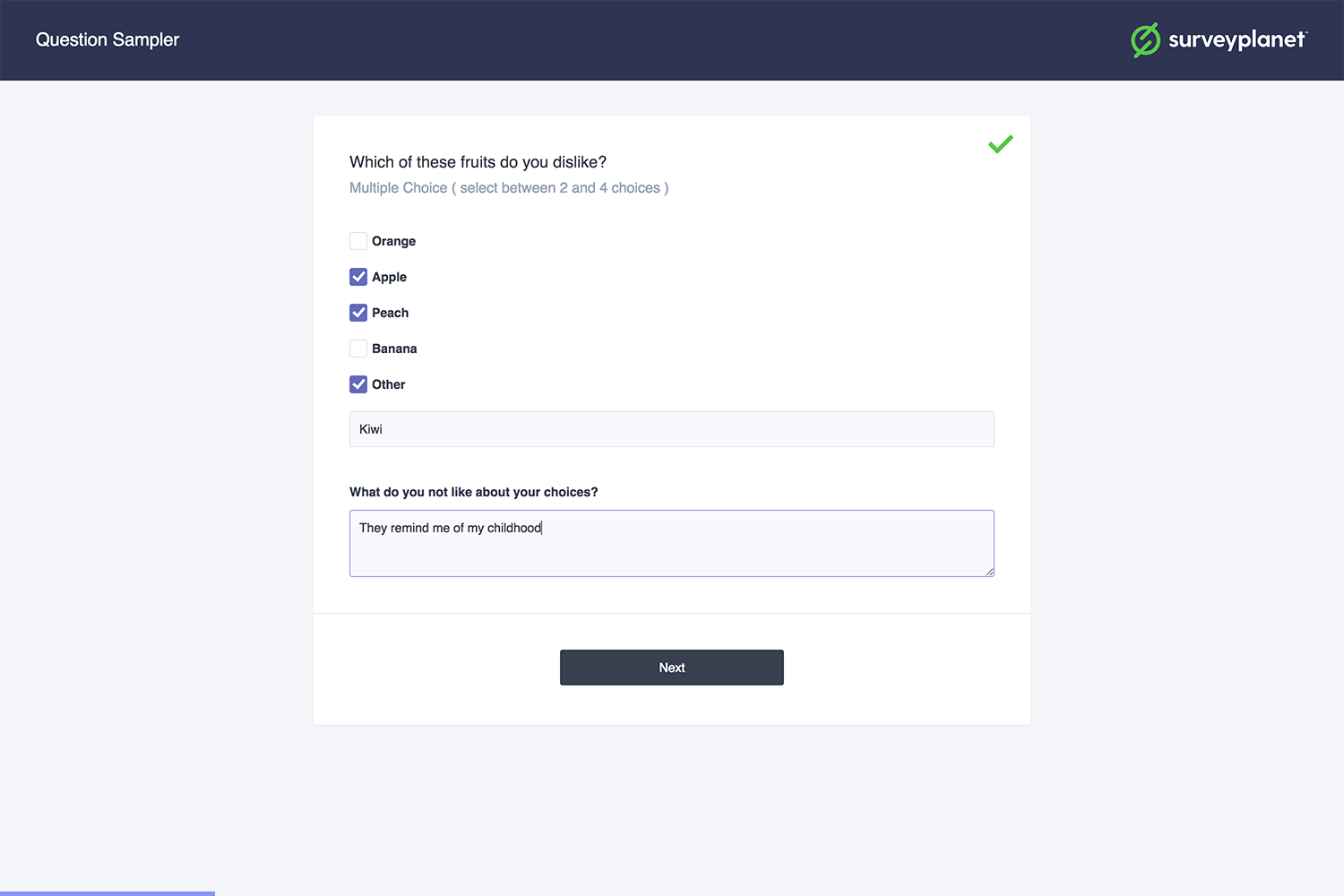
To let survey participants select multiple answers, select the checkbox next to Select Multiple below the choices. Two new options appear: Min (minimum selections) and Max (maximum selections). In Min, enter the minimum number of answer choices you want the participant to choose. In Max, enter the maximum number. For example, to let the participant choose between 3–5 answers, enter 3 in Min and 5 in Max.
Random order
If you want to have the answer choices randomized each time someone takes the survey, select the checkbox next to Random Order.
Write-in choice
- If you want someone to be able to write in an answer option, select the checkbox next to Write-In Choice.
- A new field displays below the write-in choice option. Enter “Other” or other text that lets participants know they can write in their own answer choice. If participants select this option from the answer choices, they can then write in their responses.
Layout
You can also choose a display Layout for your answer choices. If you have a lot of answer choices, listing them all in one long column can look messy. You can choose to have your answers displayed in 1, 2, 3 or 4 columns or as a dropdown list. If you use a dropdown list, your survey participant can only select one answer, you can’t randomize your answers and there is no write-in option.