Image choice question
Surveyplanet Pro users have access to a tenth question type: the image choice question. Image choice questions are like multiple choice questions, but they use images for the choices instead of text.
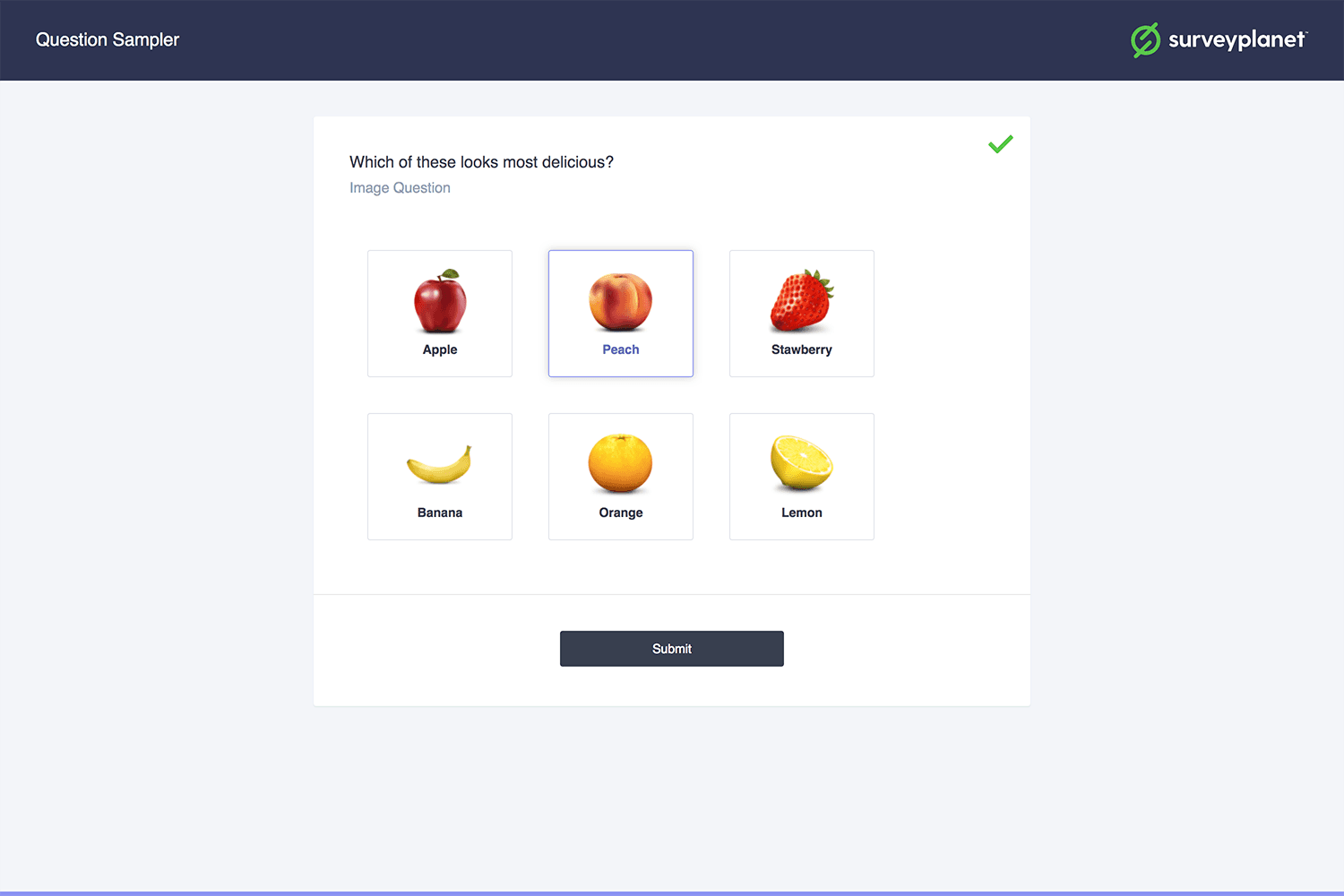
Image question options
Add an image and label
- Select Add Image.
- You can then either choose an image that you’ve already uploaded or upload a new image.
- After you select an image, you can label it in the image choice input field. By default, images are labeled Image 1, Image 2, Image 3, and so on, but you can select the label to change it to whatever you would like.
What type of image to choose
The best images are in a 4:3 ratio to fit perfectly. For a smaller image use 100px:75px, for a medium image choose 200px:150px, and for a large picture use 450:325. Supported image formats are JPG, JPEG, and PNG. Try to use pictures that are fit to the frame and not stretched. Also, try to use images that are made in the same style. Remove anything that might be distracting and focus on the differences.
Remove an image
To remove an image, hover over the image choice box until the gray X appears on the right side. Select the X to remove the image.
Reorder images
To reorder your images, hover over the image you would like to move. Select and hold the Move icon on the right side of the box and drag the choice to its new location.
Image sizes
You can have your uploaded images display in three different sizes: small, medium, and large. For Image Size, select a size.
Hide captions
If you don’t want your survey respondents to see the image captions, select the Hide Captions checkbox to keep the captions from appearing in your survey.
Select multiple
If you would like your survey participants to be able to select multiple images, select the Select Multiple checkbox. If you select this box, you must enter a minimum and maximum number of images the survey participant can choose.
Minimum select
When you select the Select Multiple checkbox, new options appear for a minimum and maximum number of selections. In Min, enter the minimum number of selections you want to require your survey participants to choose.
Maximum select
When you select the Select Multiple checkbox, new options appear for a minimum and maximum number of selections. In Max, enter the maximum number of selections you want to require your survey participants to choose.
Random order
Randomizing the image order means the images appear in a different order for each participant. To have your choices appear in a random order, select the Random Order checkbox.